
iPhone Shows Weak Security on Office Wi-Fi? What to Check
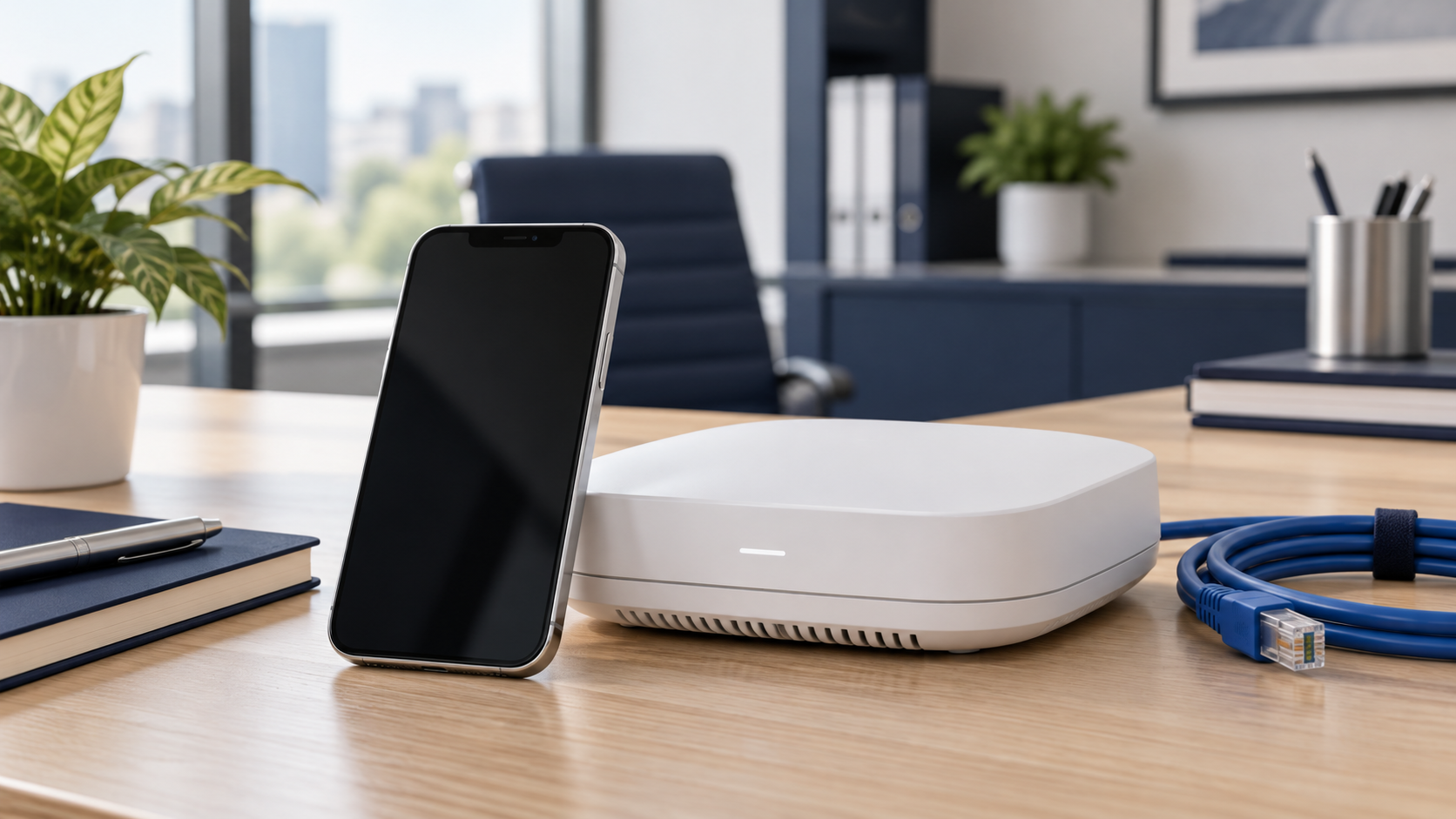
A warning on an employee’s phone is a good reason to review the office Wi-Fi configuration. Start by recording the exact warning and network name. That helps the person managing the router investigate the right connection.
Review the security mode
For networks using a shared Wi-Fi password, Apple’s recommended router settings recommend WPA3 Personal, or WPA2/WPA3 Transitional for older-device compatibility. The guide identifies WPA2 Personal with AES as an option when the stronger modes cannot be used and advises against obsolete modes or unsecured networks. Networks using enterprise authentication need settings appropriate to that design.
Prepare before changing anything
Apple recommends backing up the router configuration and checking firmware before making changes. Use your router manufacturer’s own guide to locate the relevant options. Menu names vary by model.
Include the devices people forget
Build a short test list: staff phones, laptops, printers, payment equipment, and any other approved wireless devices. Note who can test each one after the change. A successful connection from the newest phone is only one part of the check.
Give the team a clear handoff
Record the change, the test results, and any devices still needing attention. Keep the Wi-Fi password out of broadly shared notes. If someone else manages the network, send them the warning and device details before making changes yourself.
Need a second set of eyes on your office network?
Full Metal Architect helps Maryland small businesses and remote teams review their Wi-Fi and networking setup. Start FMA Connect✓ to organize your observations with the SHERPA Method, or request a project for planned network improvements. Connect provides guided troubleshooting, not an automated security scan.
