
Wi-Fi Connected but No Internet? A Small Business Troubleshooting Guide
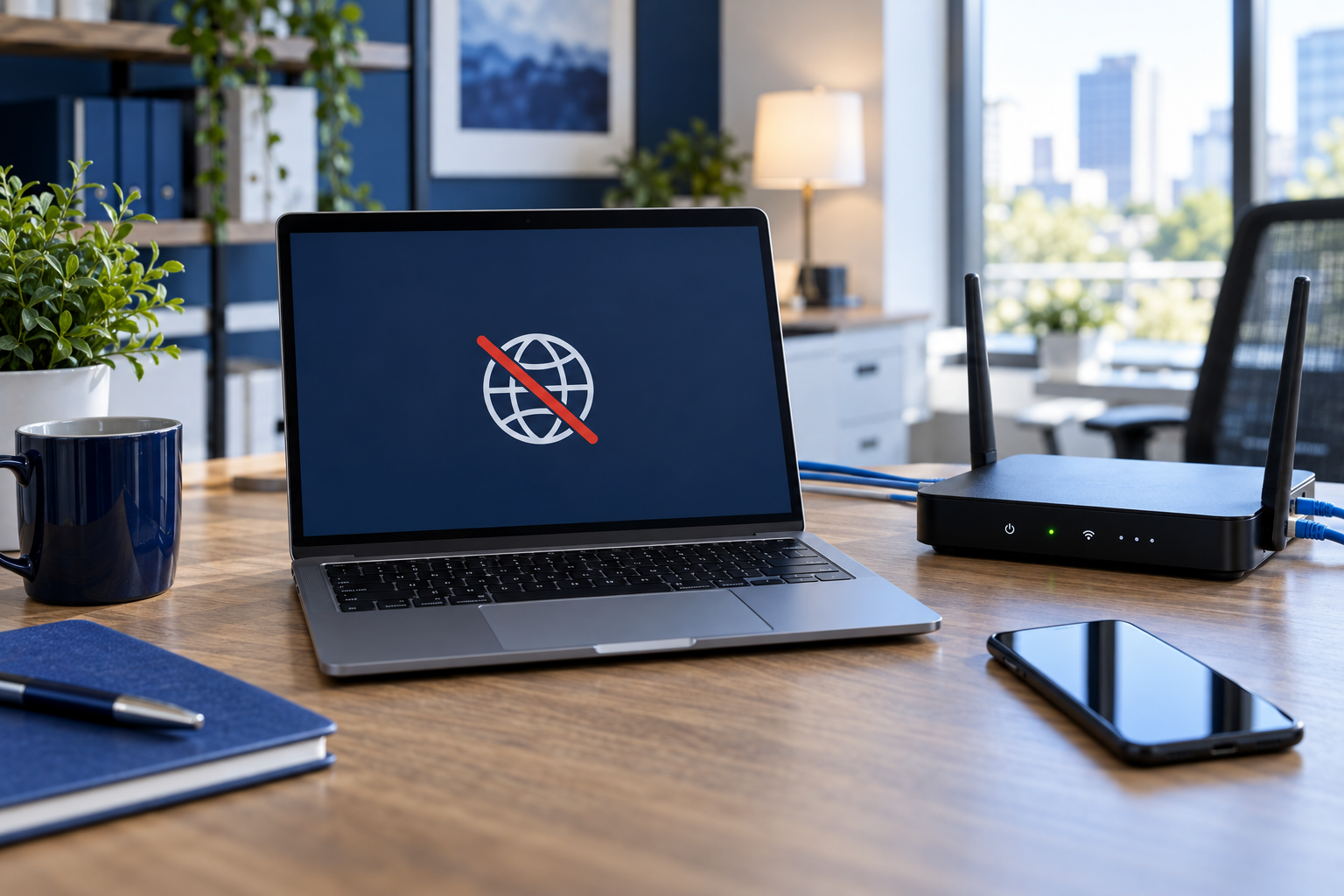
Your laptop shows a Wi-Fi connection, but websites will not load and your team cannot reach its cloud tools. The wireless connection is only one part of the path to the internet. Start by finding out whether the problem affects one device, the wireless network, or the whole office.
1. Find out who is affected
Try two unrelated websites, then test another device on the same Wi-Fi. On a phone, turn off cellular data for this comparison so it does not silently use a different connection.
One website fails: check that service’s status before changing the network.
One device fails: start with that computer’s connection and diagnostics.
Multiple devices fail: investigate the shared network and internet service.
This is a starting point, not a diagnosis. Microsoft’s Windows Wi-Fi troubleshooting guide explains how testing another device helps narrow the issue.
2. Compare Wi-Fi with a wired connection
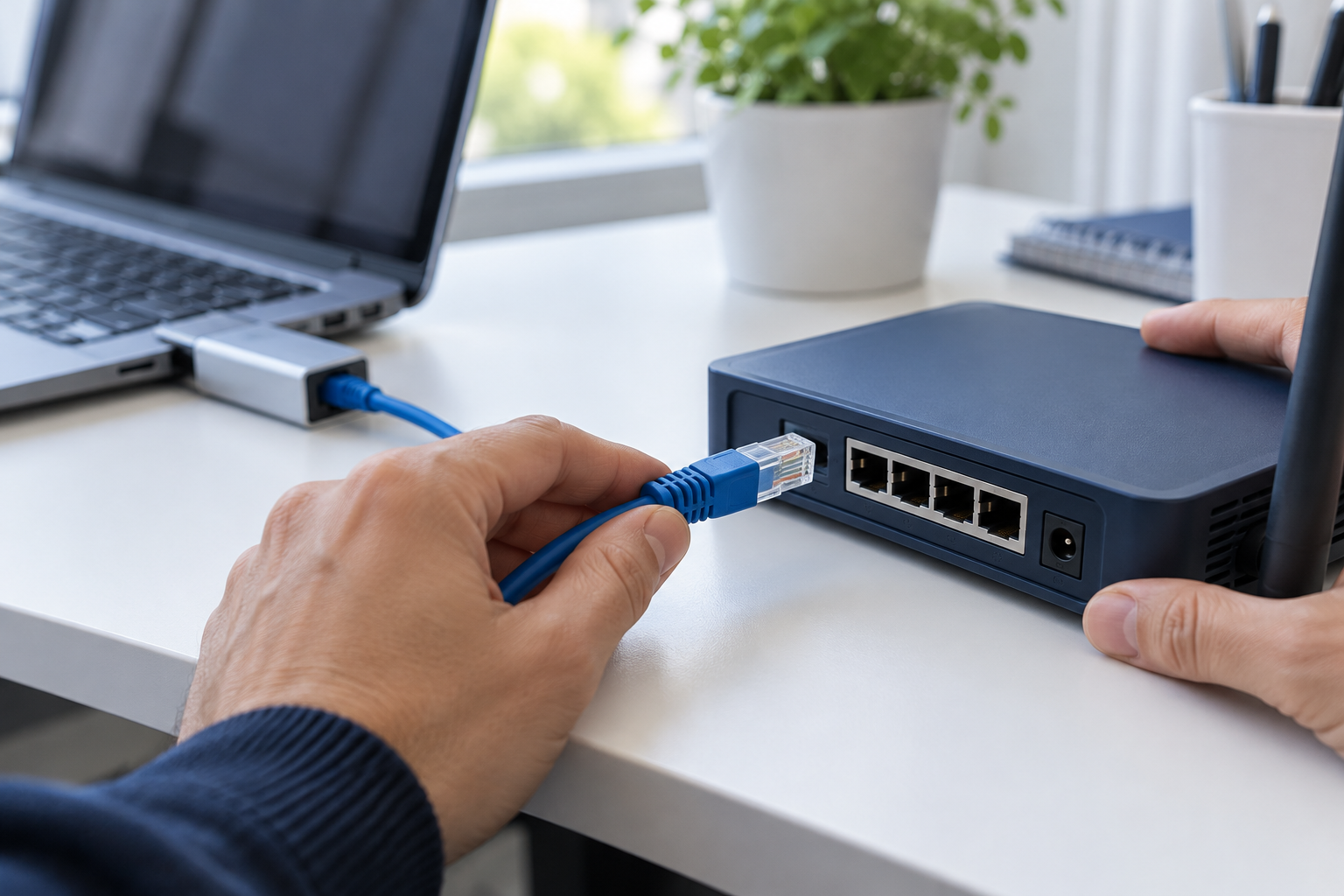
If your office setup allows it, connect a laptop to an approved router or switch LAN port using a known-good Ethernet cable. Use a compatible USB Ethernet adapter if needed, and temporarily disconnect that laptop from Wi-Fi to make the comparison clear.
If wired access works, the wireless path deserves closer investigation. If both fail, check shared equipment and service status. Neither result alone identifies the faulty component. Microsoft’s Ethernet troubleshooting guide covers cable checks and connection testing.
3. Check cables and service status
Check power and the cable between your internet equipment and the router’s WAN or Internet port. Read indicator lights using the manual for your exact model; light colors have different meanings across products. Check your provider’s outage information using a separate connection, such as your phone’s cellular service.
For TP-Link equipment, use the vendor’s WAN connection troubleshooting guide and confirm the instructions apply to your router. Do not copy another business’s WAN settings or replace ISP credentials without checking your setup.
4. Restart equipment in a planned window
A restart can interrupt calls, payment processing, and remote sessions. Let the team know first. For a simple separate modem-and-router setup, disconnect their power, wait at least 30 seconds, reconnect the modem and allow it to establish service, then reconnect the router. Combination gateways and managed business systems may need a different procedure.
Use the restart section of Microsoft’s Wi-Fi guide alongside your equipment manual or provider instructions. A power restart is different from pressing the factory-reset button, which can erase your configuration.
5. Run the affected computer’s diagnostics
On Windows 11, run the Network and Internet troubleshooter in Get Help. Record its findings before trying further changes. See Microsoft’s diagnostic steps.
On a Mac, hold Option while clicking the Wi-Fi menu, then choose Open Wireless Diagnostics. Also check that the date and time are correct. Apple’s Mac Wi-Fi troubleshooting guide explains these checks and how restarting the Mac can renew its network address.
6. Save broad resets for a reviewed fix
Windows network reset removes adapters and their settings and can require VPN software to be set up again. Microsoft treats it as a last step in its network reset guidance. For a business-managed computer, have your IT support review the findings first. Avoid changing DNS, firewall rules, or security software simply because a generic checklist suggests it.
What to send your IT support provider
Collect the time the issue started, affected devices, wired-versus-wireless results, equipment models, status lights, and any recent changes. Keep passwords out of screenshots. Once access returns, test the actual tools your team uses, including calling and payment services where relevant.
Get help with your small business network
Full Metal Architect helps Maryland small businesses and remote teams troubleshoot connectivity and plan more reliable networks. Explore our networking and internet failover services or book a free 15-minute network check to discuss your setup.
Reviewed October 15, 2026. Follow the linked vendor documentation for current steps and model-specific instructions.
