
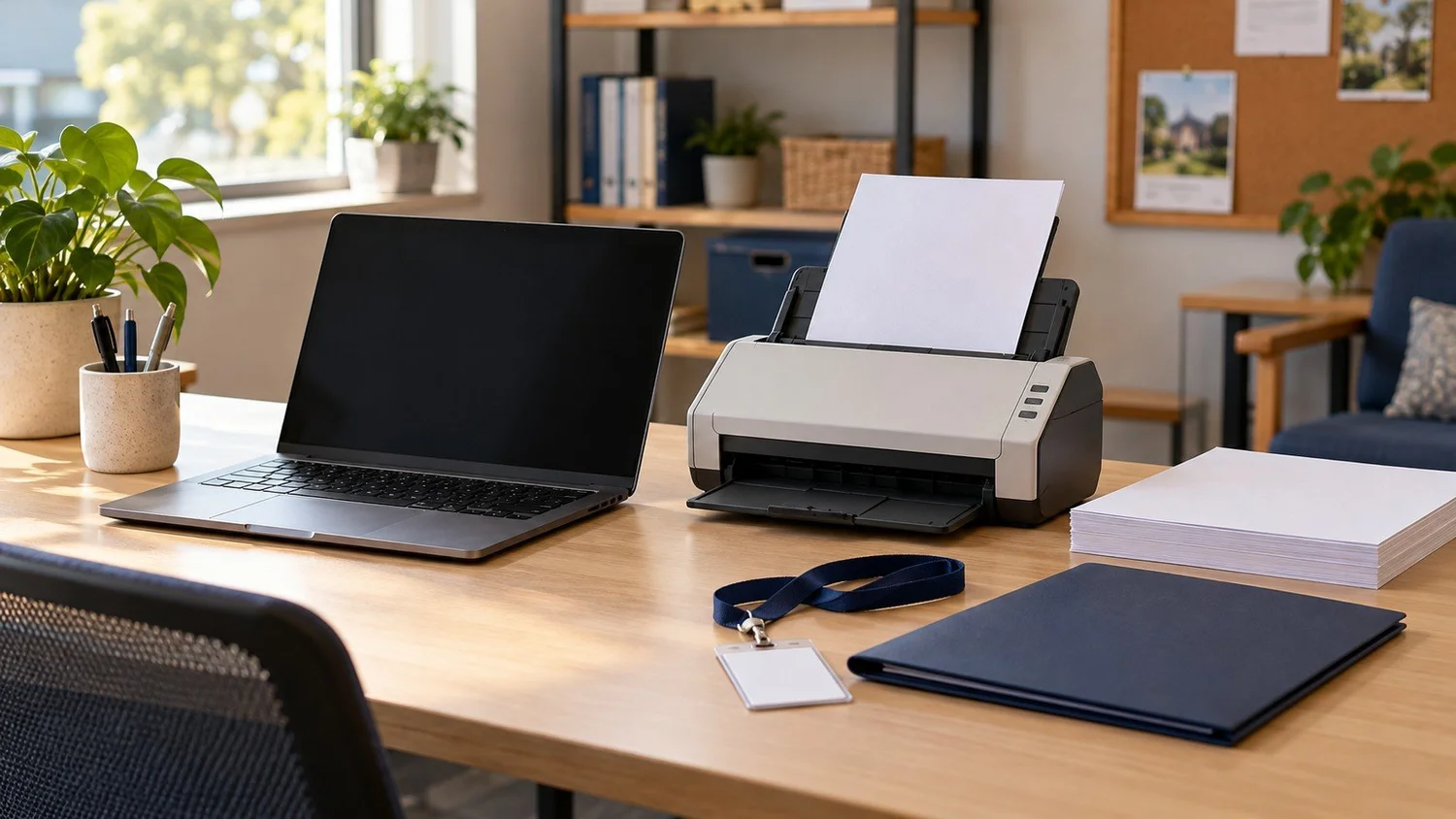
A volunteer finishes an intake shift and leaves the next person a working laptop. But the scanning application saves to the previous user's folder, a browser still shows an earlier session, and nobody is sure where yesterday's forms went.
For a small nonprofit, sharing a workstation is a workflow decision as well as a hardware decision. The goal is a predictable handoff: the next volunteer can sign in, scan a test page and save it to the approved destination without relying on the previous person's session.
Microsoft Intune can help administrators apply Windows Shared PC settings. It does not decide who should see intake records or automatically make every scanning application suitable for shared use. Start with the task and test the entire shift change before expanding the setup.
Define the intake task before choosing settings
Write down what a volunteer must do during a normal shift. Include the browser or intake application, scanner software, approved file destination and the person responsible for resolving a problem.
For example, a pilot station might use an organization-owned Windows 11 laptop and a Brother ADS-4300N connected by USB. The volunteer needs to scan a blank test form, check that it is readable and save it where an authorized staff member can retrieve it.
Keep these questions separate:
Who may sign in to Windows?
Who may access the intake application and saved documents?
Where may temporary scan files exist?
What must be closed, signed out or removed at the end of a shift?
Prefer individually assigned access where the work requires accountability. Do not treat a shared workstation as a reason to share an administrator password or leave an application signed in for the next person. Agree on the access model with the nonprofit's authorized administrator.
Use Intune for a small, documented shared-PC pilot
Microsoft documents configuring Shared PC through an Intune Settings catalog policy under the Shared PC category. The policy is assigned to a group containing the intended devices or users.
Start with one designated test workstation. Confirm the Windows edition, enrollment approach, required licenses and application compatibility before choosing a configuration. Do not assume that an existing Microsoft 365 subscription includes everything needed.
Intune's shared-device settings include sign-in options, account cleanup, local-storage controls and power behavior. Select settings against the intake workflow rather than copying a school or public-computer configuration wholesale.
Record the pilot's intended users, settings and owner. A successful policy status is useful evidence, but the volunteer still needs to demonstrate the original task. Keep other production workstations outside the initial rollout while the pilot is being checked.
Decide what happens to scanned files before enabling cleanup
Microsoft's account-management options can remove eligible profiles at sign-out or according to storage and inactivity conditions. Existing local accounts have different treatment, so do not assume every account disappears when Shared PC is enabled.
Choose the scan-file destination before choosing the cleanup rule. A file left only in a temporary user profile may be lost when that profile is removed. Conversely, a cleanup setting should not be presented as proof that every copy in every location has been erased.
Use a blank or clearly fictional form to test the following:
First volunteer signs in: Required apps and the correct scanner are available
Test page is scanned: File lands in the approved destination
First volunteer finishes: The agreed application and Windows sign-out steps are completed
Second volunteer signs in: A fresh workflow works without the first user's saved preferences
Authorized staff checks the result: Test file is retrievable using the intended access
Cleanup takes effect: Required records remain available and temporary-file behavior matches the plan
Also test any local-storage restriction against the scanning application's actual behavior. Some workflows need a temporary working location before a final save. Do not enable a restriction broadly until that route has been checked.
If the Brother ADS-4300N is not detected over USB
First distinguish a scanner that is missing from the application from a scanner that is detected but cannot save to the chosen folder. Those are different investigation paths.
Brother's ADS-4300N troubleshooting material identifies an inserted USB flash drive and a missing scanner driver as possible causes when the computer cannot find the machine through USB. They are checks to investigate, not proof of the cause on your workstation.
For the pilot, use this bounded sequence:
Save work and record the exact message and the application being used.
Confirm that this is the USB-connected station you intended to test, rather than a different network-scanner entry.
If a USB flash drive is inserted in the scanner, confirm no job is using it, safely remove it and repeat the detection test.
Have the administrator verify the appropriate Brother scanner driver for the laptop's operating system.
If scanning works under one test user but fails under the next, compare application setup, destination and permissions before replacing the scanner.
Do not factory-reset the scanner or weaken endpoint protections as a first response. Hand unresolved cases to the administrator with the model, connection type, test-user context and result. Keep real intake documents out of screenshots and support examples.
Finish with a shift-change checklist
Ask a volunteer who did not build the pilot to follow the written instructions. They should be able to complete a test scan, find the saved result and finish the shift without guessing what to leave open.
Include recovery instructions for an interrupted scan and an unavailable file destination. Name the staff contact who decides whether intake should pause or use an approved alternative. Do not make that decision depend on a volunteer improvising a personal email or USB-storage workaround.
Plan maintenance outside intake hours. Microsoft's Shared PC guidance also distinguishes shared-device maintenance from configuring Windows Update, so review the update approach separately rather than assuming one profile completes both jobs.
The acceptance test is practical: two different volunteers can complete successive shifts using the intended access and storage process. Measure that result before claiming the setup has reduced support time or protected every record.
Plan your nonprofit's shared workstation with FMA
Full Metal Architect helps Maryland organizations with business computer support, device deployment and Intune planning.
Request an FMA project with your approximate workstation and volunteer count, Windows versions, scanner models, current management tools and the handoff you want to improve. Keep client records, credentials and private identifiers out of the initial request.
A useful starting scope is a workstation baseline, access and file-handling review, one pilot, a scanner test and volunteer handoff instructions. Equipment, licensing and broader implementation are reviewed separately. For one defined fault on an existing station, review Remote Help.
Official references
Checked October 27, 2026:
