
Auto Repair Shop Monitor Blank Through a Dell WD19S Dock? Start at the Service Desk
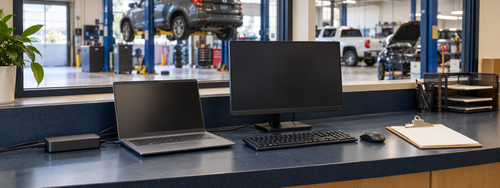
At a repair-shop service counter, a second screen can keep an estimate visible while an advisor checks a repair order or discusses the next step with a customer. If the laptop charges through its Dell WD19S dock but the monitor stays blank, start with the desk's display path. Charging alone does not establish that video is working.
This guide applies to a shop using a WD19S, a compatible Windows laptop, and an external monitor. It does not cover vehicle diagnostic equipment or presume a fault in your shop-management application.
Keep the customer workflow available
Before unplugging the dock, save the advisor's work. If the laptop's own screen works, use it temporarily according to shop policy. Confirm whether the estimate or repair-order application still opens there.
If the application works on the laptop but the external screen is blank, that observation points toward a different investigation from an application that fails on every counter computer. Record the distinction before calling support.
A designated staff member needs to be at the desk for cable and monitor checks. Remote support cannot physically reseat a connector.
Identify the equipment before changing settings
Record the laptop model, Windows version, dock label, monitor model, and the connection used: HDMI or DisplayPort. Photograph labels only for an approved private support channel.
Check that the WD19S uses its specified power adapter and that the laptop connection is secure. Select the input on the monitor that matches the cable. For video issues, Dell's WD19S guide also recommends checking cable condition, resolution settings, and a known-working monitor and cable.
Do not pull cables from a technician's diagnostic cart to improvise a counter test. Use designated spare desk equipment.
Compare the affected station with one known-working setup
Change one part at a time and write down what happens.
The monitor works directly from the compatible laptop but fails through the dock: Review the dock path, connection, power, and supported configuration
A known-working display cable restores the picture: Label and remove the suspect cable from service
Another compatible laptop works at the same counter: Compare laptop ports, settings, and approved software changes
Multiple service desks fail after the same change: Have the administrator review the shared change and affected device group
Only the repair-order application fails, while the desktop remains visible: Escalate the application symptom separately with its exact error
On Windows, use Windows + P and select Extend when you need additional desktop space. Start with one external display. Add another only after the basic setup works and the laptop/dock specifications support the intended arrangement.
A successful cable swap narrows the cause; it does not certify the entire workstation.
Use a planned maintenance window for drivers and firmware
Dell includes current system and dock software among its troubleshooting checks. Let the authorized administrator review the laptop's graphics, BIOS, and dock update requirements against the exact models.
Avoid applying several updates across every service desk during customer drop-off. Test the approved change on a representative workstation, confirm the advisor's normal tasks, and document the result before wider deployment.
If the shop already uses eligible Windows devices managed through Microsoft Intune, driver update policies can help administrators review, approve, or pause applicable updates delivered through Windows Update. Microsoft recommends planning approval responsibilities and staged deployments.
That is a management workflow, not proof that a particular WD19S firmware package is available through Intune. Follow Dell's supported route for updates that are not offered there. Intune driver update policies do not provide driver removal or rollback, so the administrator needs a separate recovery plan.
Verify the work that matters at the counter
After an approved fix, have the advisor confirm the display arrangement and the actual tasks used at that desk: opening an estimate, reviewing the repair order, and accessing the intended printer or other approved peripheral.
Use a non-sensitive example or approved test record. Do not include customer names, vehicle identifiers, or invoice screenshots in a public troubleshooting post.
A useful handoff reads: “Counter one has a WD19S and a Windows laptop. The laptop screen and repair-order application work. The external monitor works directly but remains blank through the dock. Counter two is unaffected.”
Full Metal Architect helps Maryland small businesses review computer and mobile device support. For a current service-desk issue, review Remote Help. For standardizing several counters or managing a device rollout, request an FMA project.
Official references
Checked October 23, 2026:
