
Boutique Zebra ZD421 Skipping Labels After a Roll Change? Check the Media First
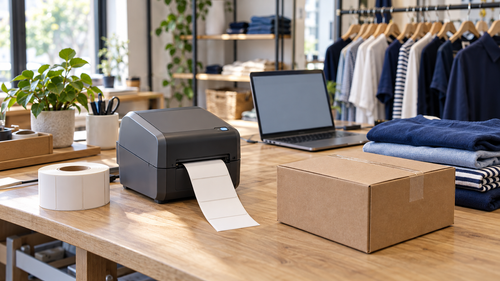
Your boutique's orders are packed, the carrier pickup is approaching, and the label printer starts feeding an extra label or shifting the print position after a roll change. Before reinstalling software, record what changed at the packing bench.
This guide is for an independent apparel retailer using a Zebra ZD421 and a Windows packing workstation. It separates media handling from workstation and shipping-application checks. It does not assume a particular shipping platform or carrier integration.
Protect the shipping queue before testing
Set aside the affected parcels and note which labels were already generated. Follow your shipping platform's process for reprinting an existing label so testing does not accidentally purchase another shipment.
Use an approved test format without customer addresses when checking alignment. Put one staff member in charge of the printer while another tracks the waiting orders. Keep failed or duplicate labels out of the parcel stack.
Record whether the problem is an extra blank label, a shifted image, completely blank output, or no output at all. Those observations lead to different checks.
Identify the roll and printer variant
Read the model label and identify the printing mode before following a procedure. Compare the old and new rolls: dimensions, supplier, stock reference and whether the media uses gaps or black marks. A similar-looking roll is not proof that the supplies match.
Zebra's ZD421 support guidance calls for settings that match the installed supplies. It also identifies skipped labels and vertical drift as reasons to review calibration. Check loading and sensor placement against the model's guide. Do not move a sensor randomly or adjust several settings together.
For an unchanged roll from the same batch after an established calibration, Zebra says pressing FEED once or twice can synchronize the labels. A changed stock or persistent skipping needs further investigation.
Use the documented SmartCal procedure
For the ZD421 procedure linked below:
Load the media correctly, including ribbon if the configured thermal-transfer setup requires it, and close the cover.
Turn the printer on and wait for the solid-green STATUS indicator.
Hold PAUSE and CANCEL together for two seconds, then release.
Allow the printer to feed and measure labels. Confirm it returns to solid green.
Use this sequence only after confirming the model and ready state. Do not substitute a power-on button combination or a factory-reset procedure from another printer guide.
If SmartCal cannot recognize the media, use Zebra's manual-calibration instructions with the responsible support person. Repeating calibration indefinitely is not a useful recovery plan.
Compare printer output with workstation output
Zebra provides a configuration-report test that does not depend on a shipping application. With supplies loaded, the cover closed and the printer ready, hold FEED and CANCEL together for two seconds, then release, as described in its configuration-report guide.
Printer-generated reports also feed or align incorrectly: Continue with media loading, sensing and printer troubleshooting.
Reports print, but one Windows application produces shifted labels: Compare its selected printer, label dimensions and output settings with the working setup.
Another approved workstation prints the same test correctly: Compare the affected workstation's queue, software and recent changes.
The new stock fails while the previous known-good stock works: Preserve both stock references and review compatibility with the supplier or support provider.
A readable report narrows the investigation. It does not prove that a shipping label has the correct dimensions or a usable barcode. Keep configuration reports private because they can include device and network details.
Where Intune can help the packing station
If the boutique already manages eligible Windows computers with Microsoft Intune, its administrator can use Win32 app management to deploy a tested application package and define installation requirements and detection rules.
For a packing station, that can support a documented software baseline after compatibility, permissions and licensing have been checked. Test the package on one representative computer before using it more widely.
This is a planning option for the Windows workstation. It is not a promise that a Zebra driver or shipping utility is automatically available in Intune, or that Intune can adjust the printer's media sensor. One faulty roll is not a reason to introduce a device-management platform.
Confirm a complete packing cycle
After the approved correction, print a short sequence using the shop's actual label format. Check alignment, the intended printer selection and the barcode with the normal approved scanning workflow. Confirm the label belongs to the correct parcel before releasing the waiting orders.
Save a short support note: “Packing station one uses a ZD421. Skipping began after a new stock reference was loaded. SmartCal completed, and the printer report prints correctly, but the shipping application still uses the previous label dimensions.”
Full Metal Architect helps Maryland small businesses with business computer and peripheral support. For a current packing-station issue, review Remote Help. To standardize several workstations, software packages or device-management policies, request an FMA project. Have someone at the printer available for physical checks.
Official references
Product procedures checked October 24, 2026:
